
Background:
I installed Fedora 36 because that’s the highest explicitly stated version of Fedora on VirtualBox’s download page.
After installing Fedora, I updated all packages using dnf and jumped straight into installing VirtualBox.
Sure, to reduce the update package size I could’ve uninstalled Boxes, LiberOffice, etc, etc. But I didn’t want to corrupt the environment with unknown modifications that these changes could lead to.
By the end of this article:
We’ll have a running VirtualBox setup on Fedora 36. Fedora 36 as the host is the key here.
You will be able to use the steps and process discussed here, along with the additional reading links to undertake this setup on other distros as well.
On to setting up VirtualBox.
Download the VirtualBox package for Fedora 36 from
https://www.virtualbox.org/wiki/Downloads > Linux Distributions > Fedora 36
This will download an rpm to ~/Downloads.
Before installing the package, ensure all packages on the host are updated.
$ sudo -i
Enter your password if prompted
# dnf update -y
Now install the downloaded rpm. The file was downloaded without root profile so change to the appropriate Downloads folder. Mine is ksk. Make the necessary substitutions below.
# dnf install /home/<user>/Downloads/<VirtualBox-***********>.rpm
You’re likely prompted to add the user to “vboxusers” group. This should be the user who’ll launch Virtualboxes.
# gpasswd -a <user> vboxusers
Check that the user is added to vboxusers:
# id <user>
uid=1000(ksk) gid=1000(ksk) groups=1000(ksk),10(wheel),976(vboxusers)
If you get a message stating the system is currently not setup to build kernel modules, some additional packages need to be downloaded. It is unlikely that you can proceed without addressing those errors first.
Let’s go through them one by one.
This system is currently not set up to build kernel modules.  Please install the Linux kernel "header" files matching the current kernel for adding new hardware support to the system.
The distribution packages containing the headers are probably:
     kernel-devel kernel-devel-6.2.15-100.fc36.x86_64
There were problems setting up VirtualBox.  To re-start the set-up process, run
  /sbin/vboxconfig
as root.  If your system is using EFI Secure Boot you may need to sign the
kernel modules (vboxdrv, vboxnetflt, vboxnetadp, vboxpci) before you can load them. Please see your Linux system's documentation for more information.
So that’s helpful. Install “kernel-devel” . While installing this, you’ll notice dnf also downloads and installs the appropriate kernel version development package.
# dnf install -y kernel-devel
If the kernel header build error came up, you’ll have to restart the virtual box setup process by running the suggested script. First things first, let’s do that and see how far we can go.
Change to /sbin and execute that script the previous error was talking about.
# cd /sbin
# ./vboxconfig
On my system, I got this error after running the script. A new error means we’ve moved something in the universe, hopefully in the direction we want things to go:
[root@Unknown sbin]# ./vboxconfig
vboxdrv.sh: Stopping VirtualBox services.
vboxdrv.sh: Starting VirtualBox services.
vboxdrv.sh: You must sign these kernel modules before using VirtualBox:
  vboxdrv vboxnetflt vboxnetadp
See the documentation for your Linux distribution..
vboxdrv.sh: Building VirtualBox kernel modules.
vboxdrv.sh: Signing VirtualBox kernel modules.
vboxdrv.sh: failed:
System is running in Secure Boot mode, however your distribution
does not provide tools for automatic generation of keys needed for modules signing. Please consider to generate and enroll them manually:
    sudo mkdir -p /var/lib/shim-signed/mok
    sudo openssl req -nodes -new -x509 -newkey rsa:2048 -outform DER -addext "extendedKeyUsage=codeSigning" -keyout /var/lib/shim-signed/mok/MOK.priv -out /var/lib/shim-signed/mok/MOK.der
    sudo mokutil --import /var/lib/shim-signed/mok/MOK.der
    sudo reboot
Restart "rcvboxdrv setup" after system is rebooted.

There were problems setting up VirtualBox.  To re-start the set-up process, run
  /sbin/vboxconfig
as root.  If your system is using EFI Secure Boot you may need to sign the kernel modules (vboxdrv, vboxnetflt, vboxnetadp, vboxpci) before you can load them. Please see your Linux system's documentation for more information.
Deconstructing this isn’t difficult. They’ve also given the script to follow.
The ‘roadblock’ is caused by the UEFI running secure boot. There are actually two ways to solve this. Unfortunately for you, I’ll be doing the difficult but right thing here. If you don’t know what the UEFI does, there are some great videos on youtube that can tell you what the UEFI is, how it is better than BIOS and all the nitty-gritties. Depends on how far down the rabbit hole you want to go.
First, let me tell you what the easy but wrong solution is: Disabling Secure boot on your UEFI. How? Restart your system, go into UEFI (you’ll need to hit F1/F2/F12/Del depending on your hardware) and disable Secure boot.
The right thing to do… We’re going to make the UEFI trust the signatures generated here for virtualbox. We need to let mokutil know what those signatures are and hand hold the OS into launching a self-signed bootloader (that’s more on-the-side jargon if you’re interested). First step, make the Machine Owner Keys (MOKs).
Install mokutil, openssl and make a directory for these shim-signed certs. Make the CSR(MOK.der), private key (MOK.priv). Don’t change the file names.
# dnf install -y mokutil openssl && mkdir /root/shim-signed && cd /root/shim-signed
# pwd
/root/shim-signed
# openssl req -nodes -new -x509 -newkey rsa:2048 -keyout MOK.priv -outform DER -out MOK.der -subj "/CN=Virtual_Box/" -addext "extendedKeyUsage=codeSigning" -days 36500
---____+++***+++----
# ls -lah
[root@Unknown shim-signed]# ls -lah
total 8.0K
drwxr-xr-x. 1 root root   34 Jun  5 14:54 .
dr-xr-x---. 1 root root  208 Jun  5 14:51 ..
-rw-r--r--. 1 root root  808 Jun  5 14:54 MOK.der
-rw-------. 1 root root 1.7K Jun  5 14:54 MOK.priv
If for any reason the file isn’t owned by root and doesn’t have ‘rw’ for root, you need to run chmod and chown to make that happen.
In the next step, you need to set a password to import the certificate. Once this is done, reboot the system. A blue screen appears with the mokutil menu. Enroll the vbox. Continue. Enter the same password now. Proceed to reboot. You’ll notice below, even though I’m logged in root profile and the shell indicates with ‘#’, I have used ‘sudo’ to ensure there’s no error at this step. Also, don’t take a quick-break here… you’ll see why.
[root@Unknown shim-signed]# sudo mokutil -i MOK.der && reboot
input password:
input password again:
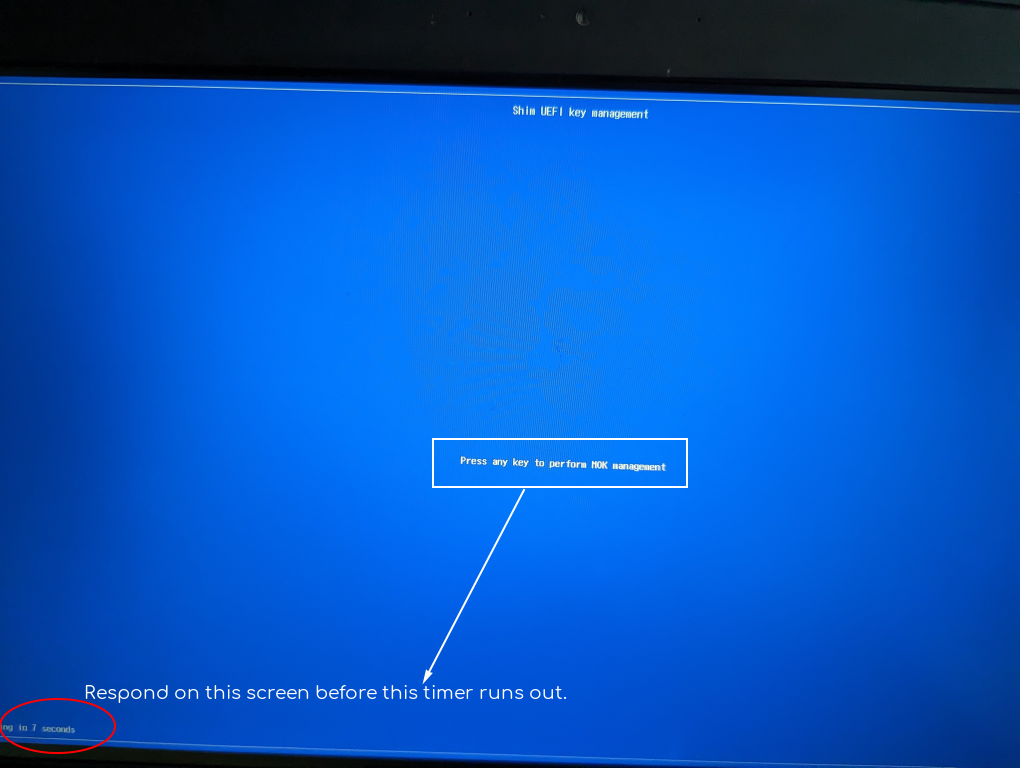
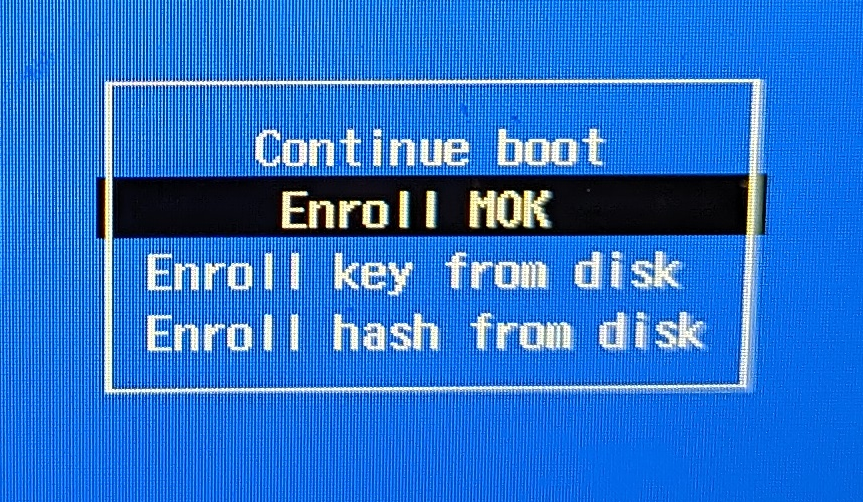
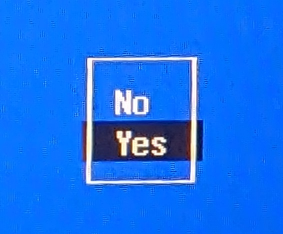
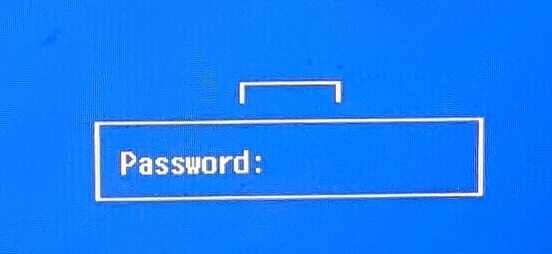
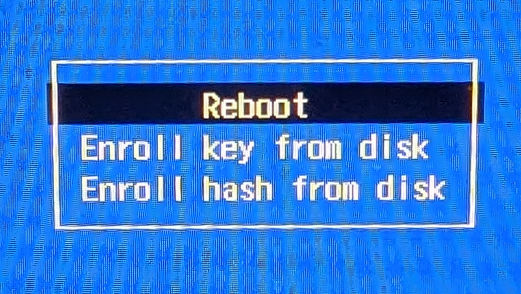
Hope all those pics helped. Next, to ensure you can sign this shim-signed module, we need to make a script. This involves some information that I’ll first lay down.
What’s the information we have about the VirtualBox Driver module that we’re signing with this certificate? Let’s see:
[ksk@Unknown ~]$ modinfo vboxdrv
filename:    /lib/modules/6.2.15-100.fc36.x86_64/misc/vboxdrv.ko
version:     7.0.8 r156879 (0x00330004)
license:     GPL
description: Oracle VM VirtualBox Support Driver
author:      Oracle and/or its affiliates
srcversion:  10CD228066F55AEAC05423A
depends:
retpoline:   Y
name:        vboxdrv
vermagic:    6.2.15-100.fc36.x86_64 SMP preempt mod_unload
parm:        force_async_tsc:force the asynchronous TSC mode (int)
We need to sign vbox*.ko with our certificate. Notice here, the three modules vboxdrv, vboxnetadp, vboxnetflt inside that folder aren’t signed. How do I know? I’ll show you after a few steps. And this “signing” needs to happen as root user after every system update. I won’t go into automating it at this time. Just know this exists and should be executed after every system update.
Getting information for signing it…
[ksk@Unknown ~]$ modinfo -n vboxdrv
/lib/modules/6.2.15-100.fc36.x86_64/misc/vboxdrv.ko
[ksk@Unknown ~]$ $(modinfo -n vboxdrv)
bash: /lib/modules/6.2.15-100.fc36.x86_64/misc/vboxdrv.ko: Permission denied
[ksk@Unknown ~]$ dirname $(modinfo -n vboxdrv)
/lib/modules/6.2.15-100.fc36.x86_64/misc
We need to use sign-file. On my system, it is located at /usr/src/kernels/6.2.15-100.fc36.x86_64/scripts/sign-file. How do I know? I used ‘locate’. Because this is a fresh system, first update the mlocate database so that the tool can do its job.
[ksk@Unknown ~]$ sudo -i
[root@Unknown /]# updatedb
[root@Unknown /]# locate sign-file
/usr/src/kernels/6.2.15-100.fc36.x86_64/scripts/sign-file
/usr/src/kernels/6.2.15-100.fc36.x86_64/scripts/sign-file.c
6.2.15-100.fc36.x86_64 is my kernel version. It’s useful to abstract into as variable. You get this using…
# uname -r
6.2.15-100.fc36.x86_64
Let’s use all this information to make that script that we can execute manually after a system update.
[root@Unknown /]# cd /root/shim-signed/
[root@Unknown shim-signed]# vi sign-vboxdrv
[root@Unknown shim-signed]# cat sign-vboxdrv
!/bin/bash
for drvfile in $(dirname $(modinfo -n vboxdrv))/.ko; do      echo "Signing $drvfile"      /usr/src/kernels/$(uname -r)/scripts/sign-file sha256 \                                /root/shim-signed/MOK.priv \                        /root/shim-signed/MOK.der "$drvfile"  done  [root@Unknown shim-signed]# ll sign
-rw-r--r--. 1 root root 334 Jun  5 16:21 sign-vboxdrv
The file is missing ‘execute’ permissions. Because this is in root’s home, I’m giving only ‘root’ user the permission to execute it.
[root@Unknown shim-signed]# sudo chmod u+x sign-vboxdrv
[root@Unknown shim-signed]# ll sign*
-rwxr--r--. 1 root root 334 Jun  5 16:21 sign-vboxdrv
Run this script now and restart the virtual box setup.
[root@Unknown shim-signed]# ./sign-vboxdrv
Signing /lib/modules/6.2.15-100.fc36.x86_64/misc/vboxdrv.ko
Signing /lib/modules/6.2.15-100.fc36.x86_64/misc/vboxnetadp.ko
Signing /lib/modules/6.2.15-100.fc36.x86_64/misc/vboxnetflt.ko
[root@Unknown shim-signed]# modinfo vboxdrv
filename:       /lib/modules/6.2.15-100.fc36.x86_64/misc/vboxdrv.ko
version:        7.0.8 r156879 (0x00330004)
license:        GPL
description:    Oracle VM VirtualBox Support Driver
author:         Oracle and/or its affiliates
srcversion:     10CD228066F55AEAC05423A
depends:
retpoline:      Y
name:           vboxdrv
vermagic:       6.2.15-100.fc36.x86_64 SMP preempt mod_unload
sig_id:         PKCS#7
signer:         Virtual_Box
sig_key:        7A:EE:FC:D9:28:35:12:7C:5B:06:61:84:DE:97:XX:XX:XX:XX:33:5F
sig_hashalgo:   sha256
signature:      XX:XX:XX:XX
parm:           force_async_tsc:force the asynchronous TSC mode (int)
See all the additional information about the signature now? So we’ve finished signing vboxdrv and the other two files. Let’s resume that setup.
[root@Unknown shim-signed]# rcvboxdrv setup
vboxdrv.sh: Stopping VirtualBox services.
vboxdrv.sh: Starting VirtualBox services.
vboxdrv.sh: You must sign these kernel modules before using VirtualBox:
  vboxdrv vboxnetflt vboxnetadp
See the documentation for your Linux distribution..
vboxdrv.sh: Building VirtualBox kernel modules.
vboxdrv.sh: Signing VirtualBox kernel modules.
vboxdrv.sh: failed:
Thought we’ve finished signing vboxdrv and restarted the setup!! What went wrong? We get the same error about system in secure boot and signing those 3 modules.
Closer inspection shows that the MOK need to be on /var/lib/shim-signed/mok directory. Let’s create that structure and copy the CSR, private key and script over to the expected path.
[root@Unknown shim-signed]# mkdir -p /var/lib/shim-signed/mok && cp /root/shim-signed/* /var/lib/shim0signed/mok/ && rcvboxdrv setup
vboxdrv.sh: Stopping VirtualBox services.
vboxdrv.sh: Starting VirtualBox services.
vboxdrv.sh: Building VirtualBox kernel modules.
vboxdrv.sh: Signing VirtualBox kernel modules.
[root@Unknown mok]#
So finally, no errors. If you’re looking for some more light reading on this matter, there’s an excellent article on debian wiki, almost all of that is relevant for Redhat+ distros as well: https://wiki.debian.org/SecureBoot
That went well!!! Just before you think we’re done….
Now to ensure SELinux doesn’t throw any errors while launching VirtualBox, you’ll have to allow using VirtualBox by setting the “use_virtualbox” flag. Simple.
# setsebool -P use_virtualbox 1 Reboot the OS to proceed.
I’m guessing you’ve rebooted and launched the terminal again. Switch into sudo as current user’s login shell. Check if the use_virtualbox flag has been set.
$ sudo -i
# getsebool use_virtualbox
use_virtualbox --> on
Let’s install the virtualbox extention pack. This has the benefit of allowing disk encryption on your VMs, PXE boot (which will come in handy for network installs), etc. Get the “All supported platforms” one for the version of VirtualBox you downloaded. This goes into the ~/Downloads directory as well. Just open with Oracle VM..
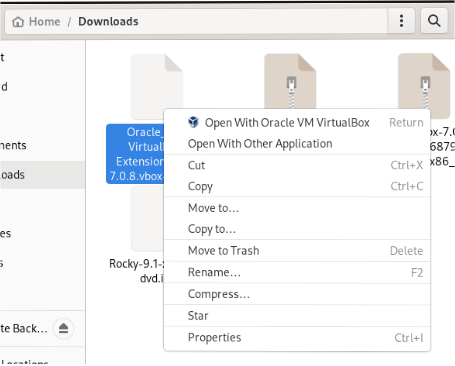
Install, provide your password. All done!!!
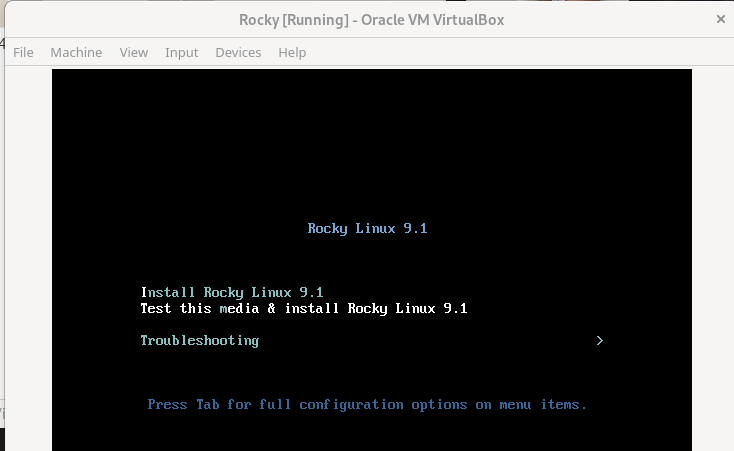
Enjoy and all the best!

 kskspeaking